Write and Test Falcon Foundry Functions with the New Python Editor
If you’ve built Falcon Foundry functions before, you know the drill: set up a local Python environment, write your code, deploy through the Foundry CLI, fix something, redeploy. It works, but there’s friction at every step. Scope management alone can eat up time if you’re calling Falcon APIs through FalconPy.
Falcon Foundry now includes a browser-based Python editor that lets you write, edit, test, and deploy functions without leaving the console. This post walks through deploying the foundry-sample-functions-python app from Foundry > Templates and exploring its code in the editor. You’ll see handler patterns, FalconPy integration, automatic scope detection, function logging, and how to add your own handler to an existing app. Note that the editor supports Python functions only; Go functions still require the Foundry CLI.
Table of Contents:
- Getting Started
- Writing Functions in the Editor
- Registering Handlers
- Testing Functions
- Viewing Function Logs
- API Scopes and FalconPy
- Keep Building with Falcon Foundry
Prerequisites:
- Falcon Insight XDR or Falcon Prevent
- Falcon Next-Gen SIEM or Falcon Foundry
Getting Started
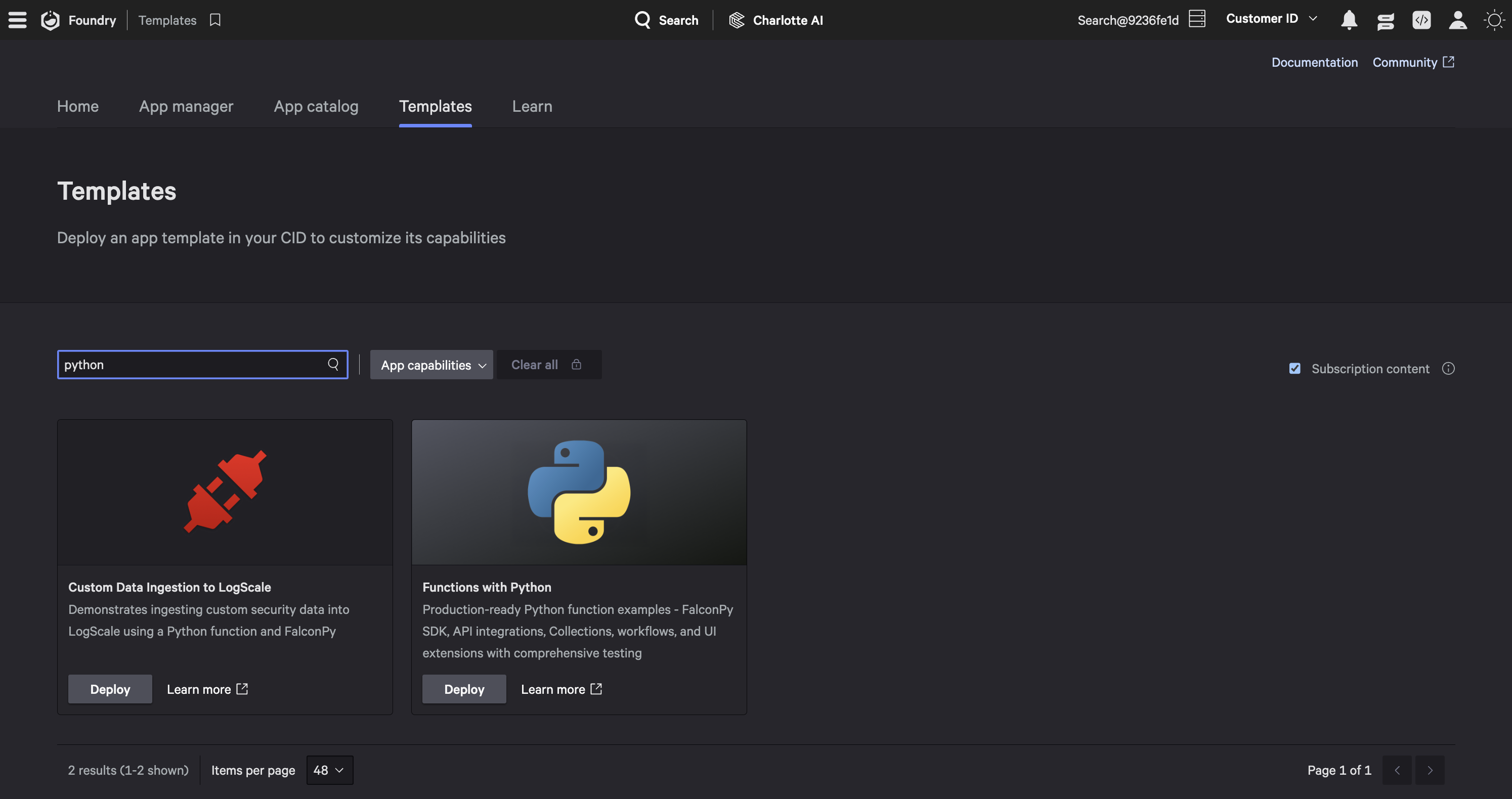
To follow along, deploy the sample app from Templates. In the Falcon console, navigate to Foundry > Templates and search for “python” to narrow the results. Find Functions with Python and click Deploy.
Once the app is deployed, click Release. Then click View in catalog and Install to activate it in your environment. You’ll be prompted for ServiceNow credentials. You can enter fake values since we won’t be executing the ServiceNow function. Installing the app is important because FalconPy-based functions need a real app installation for context-aware authentication.
This gives you a complete app with multiple functions already wired up with handlers, FalconPy dependencies, and proper error handling.
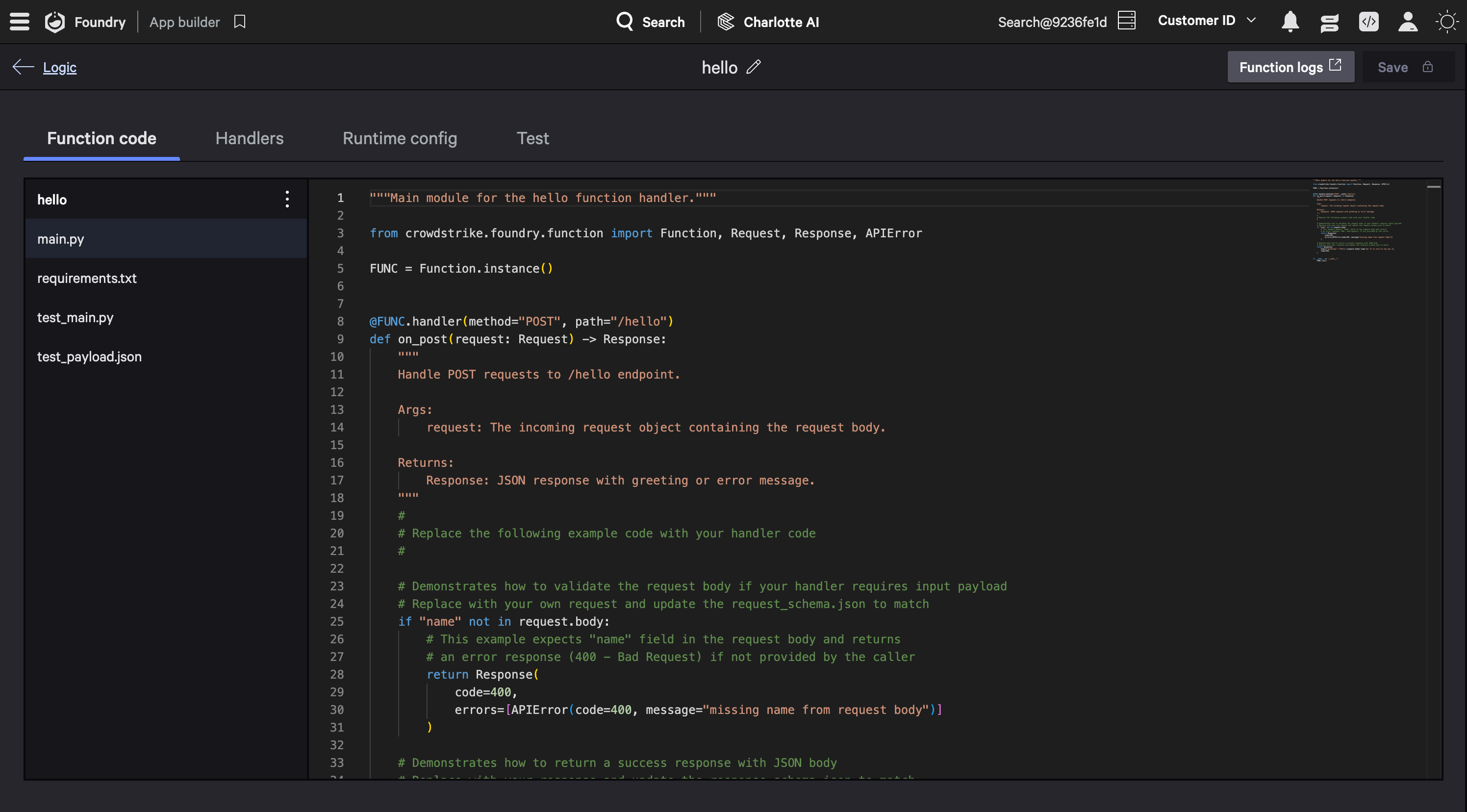
Once deployed, open any function to see the editor layout: a file list on the left and the code editor on the right. Every Python function requires two files: main.py for your handler code and requirements.txt for dependencies. You can add additional files and folders as needed, but keep in mind that empty folders can’t be saved. The editor will warn you if you try.

For detailed reference on working with functions in the UI editor, see the Falcon Foundry docs.
Writing Functions in the Editor
Open the hello function and you’ll see the simplest handler pattern:
from crowdstrike.foundry.function import Function, Request, Response, APIError

FUNC = Function.instance()


@FUNC.handler(method="POST", path="/hello")
def on_post(request: Request) -> Response:
    if "name" not in request.body:
        return Response(
            code=400,
            errors=[APIError(code=400, message="missing name from request body")]
        )

    return Response(
        body={"greeting": f"Hello {request.body['name']}! It is nice to see you."},
        code=200,
    )


if __name__ == "__main__":
    FUNC.run()
The pattern is consistent across every function: import the FDK, get a Function instance, decorate your handler with @FUNC.handler specifying the HTTP method and path, then return a Response. The Request object gives you access to the request body, and APIError provides structured error responses.
The host-details function shows what this looks like with FalconPy. It imports the Hosts service class and uses it to look up device information:
from crowdstrike.foundry.function import Function, Request, Response, APIError
from falconpy import Hosts

FUNC = Function.instance()


@FUNC.handler(method="POST", path="/host-details")
def on_post(request: Request) -> Response:
    if "host_id" not in request.body:
        return Response(
            code=400,
            errors=[APIError(code=400, message="missing host_id from request body")]
        )

    host_id = request.body["host_id"]
    falcon = Hosts()
    response = falcon.get_device_details(ids=host_id)

    if response["status_code"] != 200:
        return Response(
            code=response["status_code"],
            errors=[APIError(code=response["status_code"],
                             message=f"Error retrieving host: {response['body']}")],
        )

    return Response(
        body={"host_details": response["body"]["resources"][0]},
        code=200,
    )
Notice that Hosts() is initialized without any credentials. When running inside Falcon Foundry, the FDK handles authentication automatically through context-aware auth. The requirements.txt for this function includes the FalconPy dependency:
crowdstrike-foundry-function==1.1.4
crowdstrike-falconpy
You can either add a new handler to an existing function’s main.py or create a separate function with its own main.py. Below is the code for a new function called host-count to keep things organized. The handler follows the same decorator pattern:
from crowdstrike.foundry.function import Function, Request, Response, APIError
from falconpy import Hosts

FUNC = Function.instance()


@FUNC.handler(method="POST", path="/host-count")
def on_post(request: Request) -> Response:
    falcon = Hosts()
    response = falcon.query_devices()

    if response["status_code"] != 200:
        return Response(
            code=response["status_code"],
            errors=[APIError(code=response["status_code"],
                             message=f"Error querying hosts: {response['body']}")],
        )

    return Response(
        body={"total": len(response["body"]["resources"])},
        code=200,
    )
This calls query_devices() to get host IDs and returns the count. Once you’ve written the code, you need to register the handler in the UI.
Registering Handlers
Handlers defined in code don’t automatically appear in the app’s configuration. You need to register each one manually in the Handlers tab of the function editor. Click Add Handler, then set the HTTP method (e.g., POST), the path (e.g., /host-count), a name, and a description. You can also edit the input and output JSON schemas here to define what callers should send and what they’ll get back.
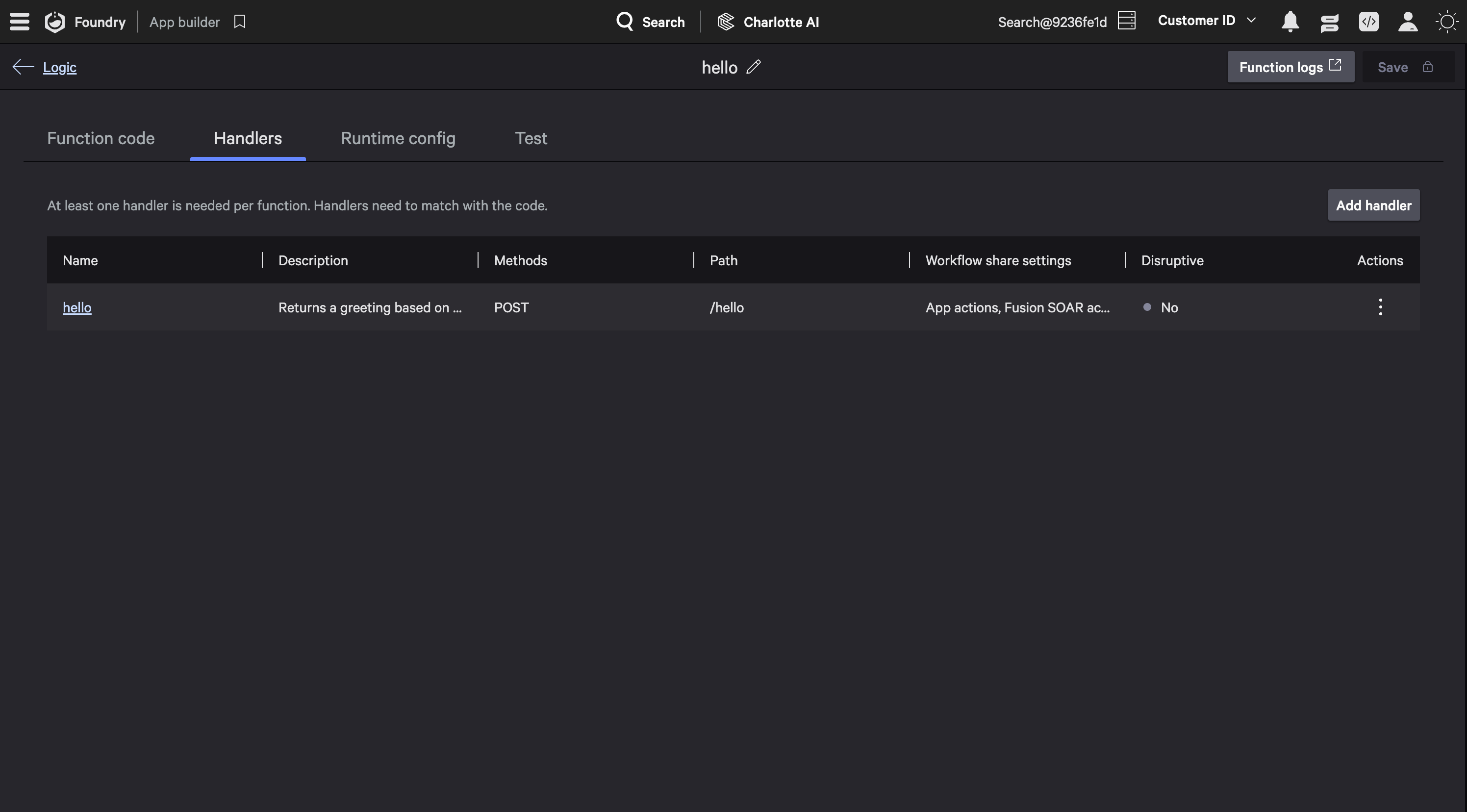
One option worth knowing about: the Share with workflows toggle lets Falcon Fusion SOAR workflows call your handler directly. If you enable this, the handler name you configure here becomes the action name in workflows, so use something unique and descriptive to make it easy to find in the “Add Action” dialog. If you’re building functions that other teams will invoke from automated workflows, enable this for the relevant handlers.
Phase 2 of the editor will automate handler registration, detecting handlers from your code and populating the Handlers tab automatically. Depending on timing, this may already be available by the time you read this.
Testing Functions
Testing requires a specific sequence. First, you must Deploy the app. There’s no way to test before deployment since the function needs to be running in the Falcon cloud.
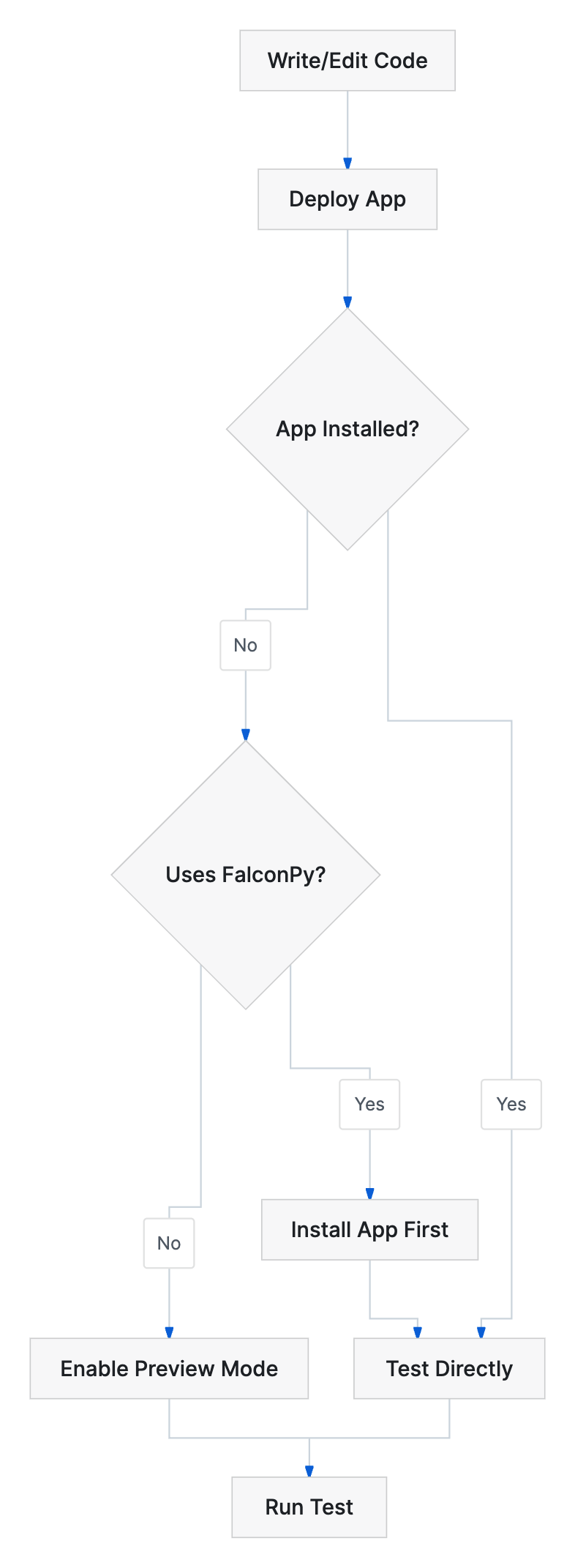
For apps that aren’t installed yet, enable Preview mode by going to Developer tools (the </> icon) > Preview mode, selecting your app and version. Then navigate back to the function and use the Test tab to send a request. For the hello function, you’d send:
{
  "name": "World"
}
For apps that are already installed, you can test directly without Preview mode.
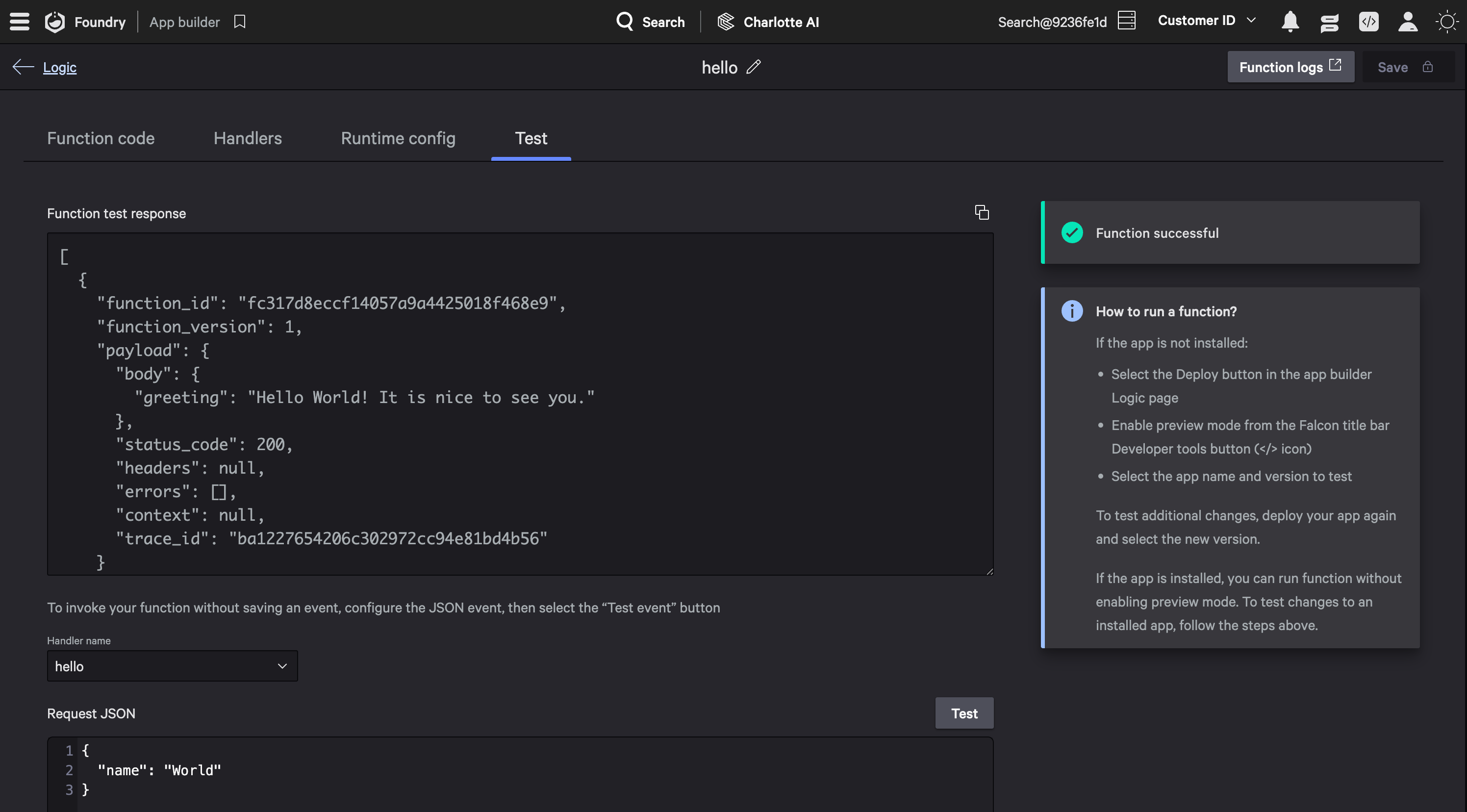
Since we installed the app earlier, the test runs directly. For uninstalled apps, you’ll need to toggle Preview mode on from the Developer tools menu first.
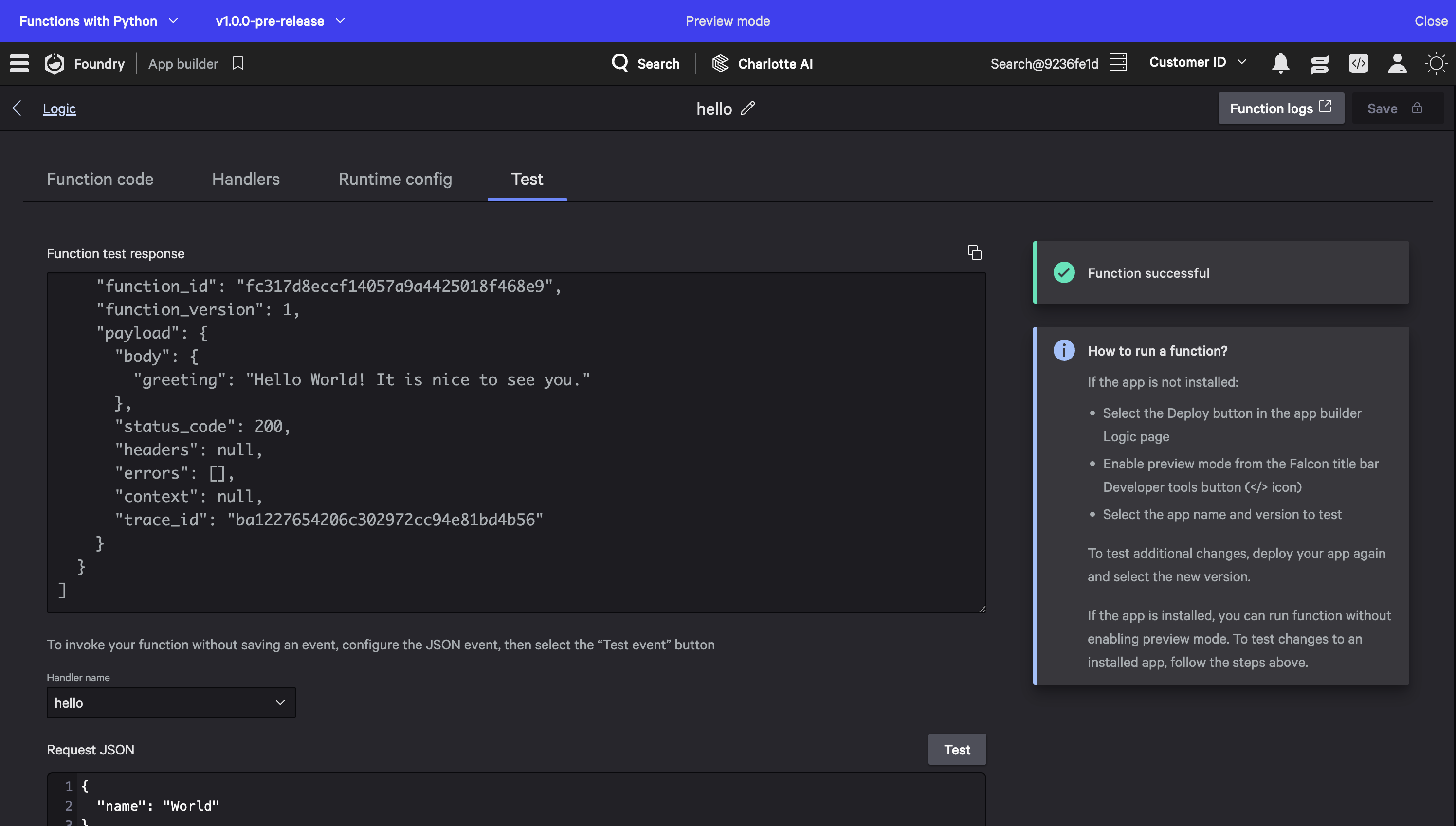
There’s one important limitation: FalconPy-based functions (like host-details) require the app to be fully installed. Preview mode doesn’t work with FalconPy because the context-aware authentication needs a real app installation to generate the proper credentials. So for the hello function, Preview mode works fine. For host-details, install the app first.
The sample app includes unit tests that you can view and edit in the editor, but running them still requires a local Python environment. For details on setting that up, see the unit testing section in the Dive into Python Functions post.
Viewing Function Logs
When something goes wrong with a function, logs are a good way to see what happened. The FDK injects a Logger instance into your handler if you add it to the function signature. The host-info function in the sample app shows the pattern:
from logging import Logger
from crowdstrike.foundry.function import Function, Request, Response

FUNC = Function.instance()


@FUNC.handler(method="POST", path="/host-info")
def on_post(request: Request, logger: Logger) -> Response:
    host_id = request.body.get("host_id")
    logger.info(f"Host ID: {host_id}")
    # ... rest of handler
Add logger: Logger as a parameter to your handler function and the FDK handles the rest. You can call logger.info(), logger.error(), logger.warning(), and any other standard Python logging methods.
To view logs, click Function logs in the top right of the function editor. Note that there can be a delay between running a function and when logs appear since they need to be ingested. This opens Falcon Next-Gen SIEM’s Advanced event search with a pre-built LogScale query that filters for your function’s log messages:
#repo = "foundry" | "#event_simpleName" = FunctionLogMessage | "fn_id" = <your-function-id>
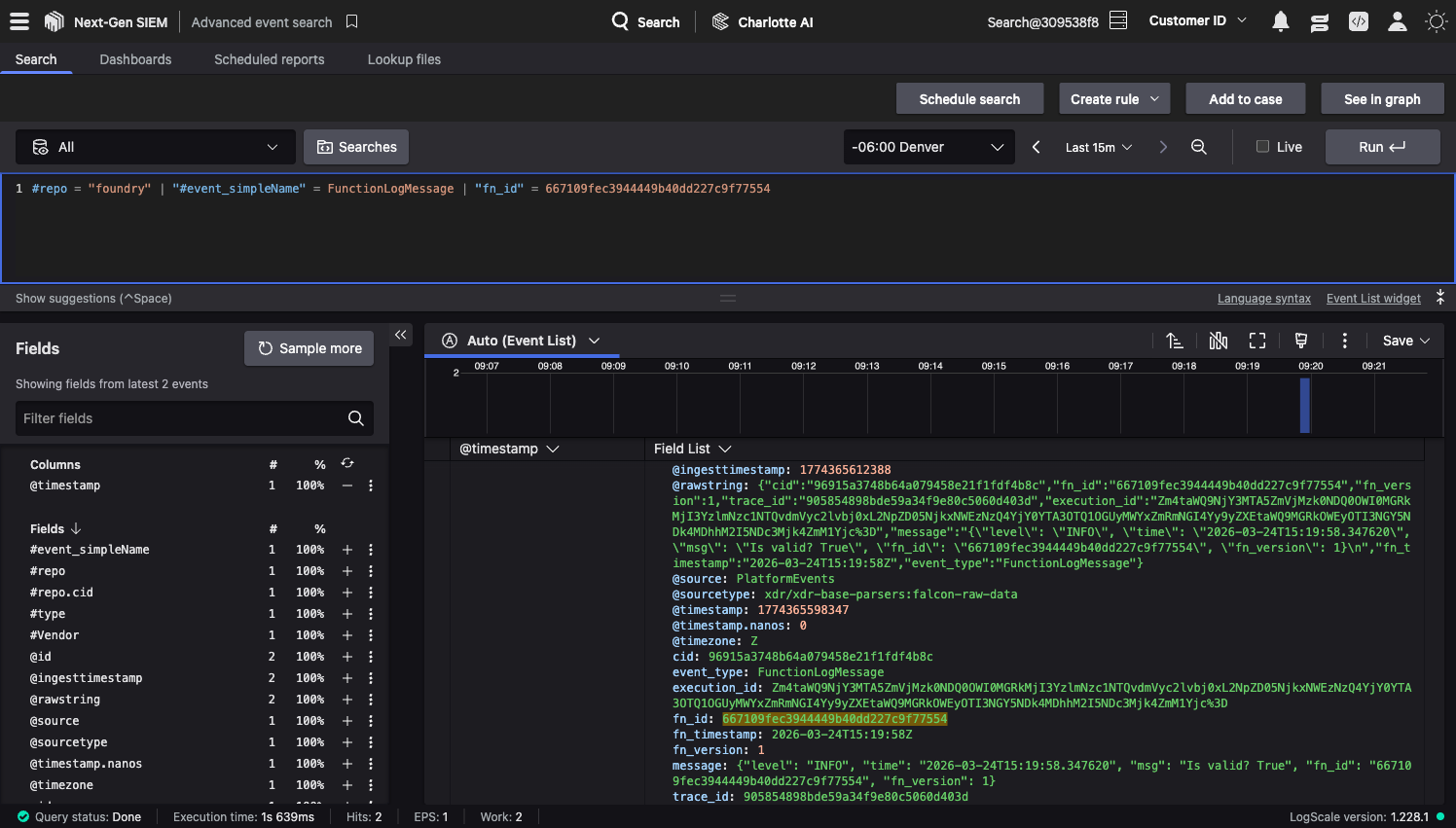
Each log event includes the message level, timestamp, function ID, and the trace ID from the invocation. You can expand the time range, add filters, or save the search as a dashboard for ongoing monitoring.
API Scopes and FalconPy
When you import a FalconPy service class, the editor automatically detects which API scopes your function needs. Open the Runtime Config tab on the host-details function, and you’ll see devices and host-group listed with an origin of “Code derived.” The editor figured this out from the from falconpy import Hosts line in your code. The detection works at the import level, so it includes scopes for every method the Hosts class provides, not just the ones your code actually calls.
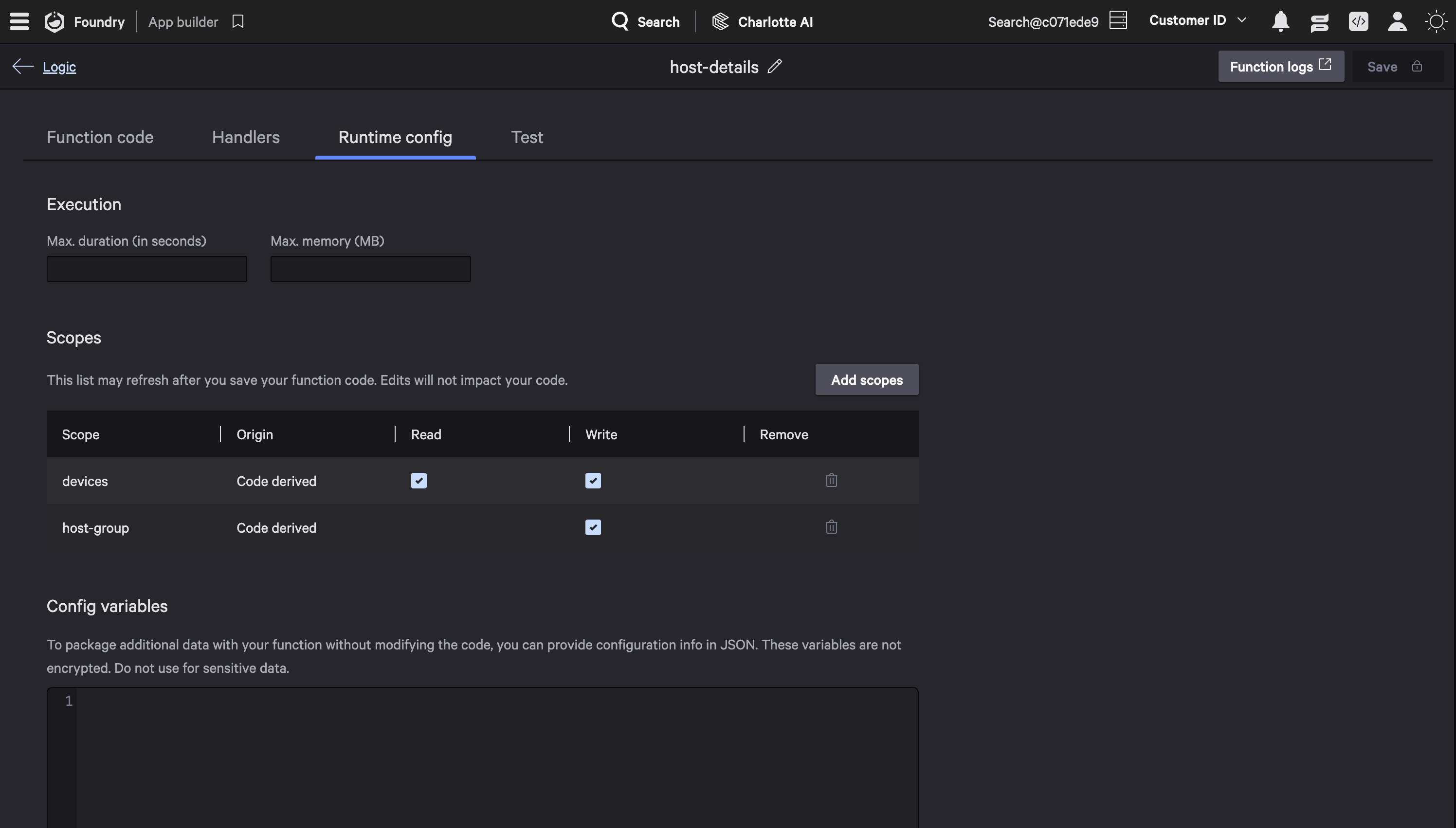
Since host-details only calls get_device_details(), you can uncheck devices:write and host-group:write to follow the principle of least privilege. Code-derived scopes can be unchecked but not deleted since they’re tied to your imports. If you add a scope manually through the Add Scope button, it shows as “manual selection” and can be fully deleted later.
This auto-detection works for FalconPy service classes like Hosts, Detects, Incidents, and others. It does not work for the Uber class (APIHarnessV2).
Keep Building with Falcon Foundry
The browser-based editor takes a workflow that used to span your local machine, the Foundry CLI, and the Falcon console, and puts it all in one place. Writing a handler, registering it, configuring scopes, deploying, and testing now happens in a single browser tab. That’s a meaningful reduction in friction, especially when you’re iterating quickly on function logic.
For official documentation, see the Falcon Foundry docs. The FalconPy SDK documentation covers every service class and its required scopes. If you have questions or want to share what you’re building, join the Foundry Developer Community.
If you want to go deeper into function patterns and concepts not covered here, check out these related posts:
- Dive into Falcon Foundry Functions with Python
- Getting Started with Falcon Foundry Collections
- Ingesting Custom Data into Falcon LogScale with Falcon Foundry Functions
What will you build with the Falcon Foundry Functions editor? Deploy the sample app from Templates and start experimenting. Connect with me on LinkedIn or join the Foundry Developer Community to share what you’re building.