Exporting Falcon Next-Gen SIEM Query Results to CSV with Falcon Foundry

You’ve been running Falcon Next-Gen SIEM queries to hunt threats, track failed logins, or monitor DNS traffic. The queries work great inside the console. But now you need that data somewhere else: a CSV for a compliance report, a lookup file for correlation in Falcon Next-Gen SIEM, or records in a collection your Falcon Foundry app can query.
Falcon Foundry gives you two paths to get data out of Falcon Next-Gen SIEM: functions (Python code that queries programmatically) and workflows (visual pipelines in Falcon Fusion SOAR). Once you have query results, you can convert them to CSV, upload them as lookup files in Falcon Next-Gen SIEM, send them to an external service through an API integration, or store them in a collection for your app to query later.
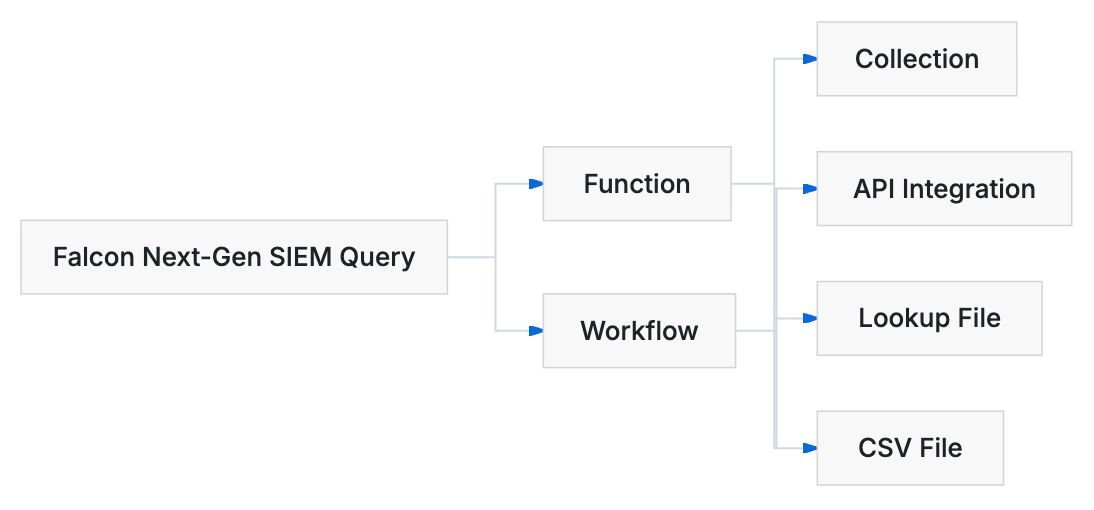
This post walks through each of those paths with working code and configuration you can drop into your own Falcon Foundry apps.
Table of Contents:
- Querying Falcon Next-Gen SIEM from a Function
- Querying Falcon Next-Gen SIEM from a Workflow
- Converting Query Results to CSV in a Function
- Uploading CSV as a Falcon Next-Gen SIEM Lookup File
- Sending Results to an API Integration
- Storing Results in a Collection
- Querying Your Exported Data
- Sample Apps and Resources
- Keep Building with Falcon Foundry
Prerequisites:
- Falcon Insight XDR or Falcon Prevent
- Falcon Next-Gen SIEM or Falcon Foundry
Querying Falcon Next-Gen SIEM from a Function
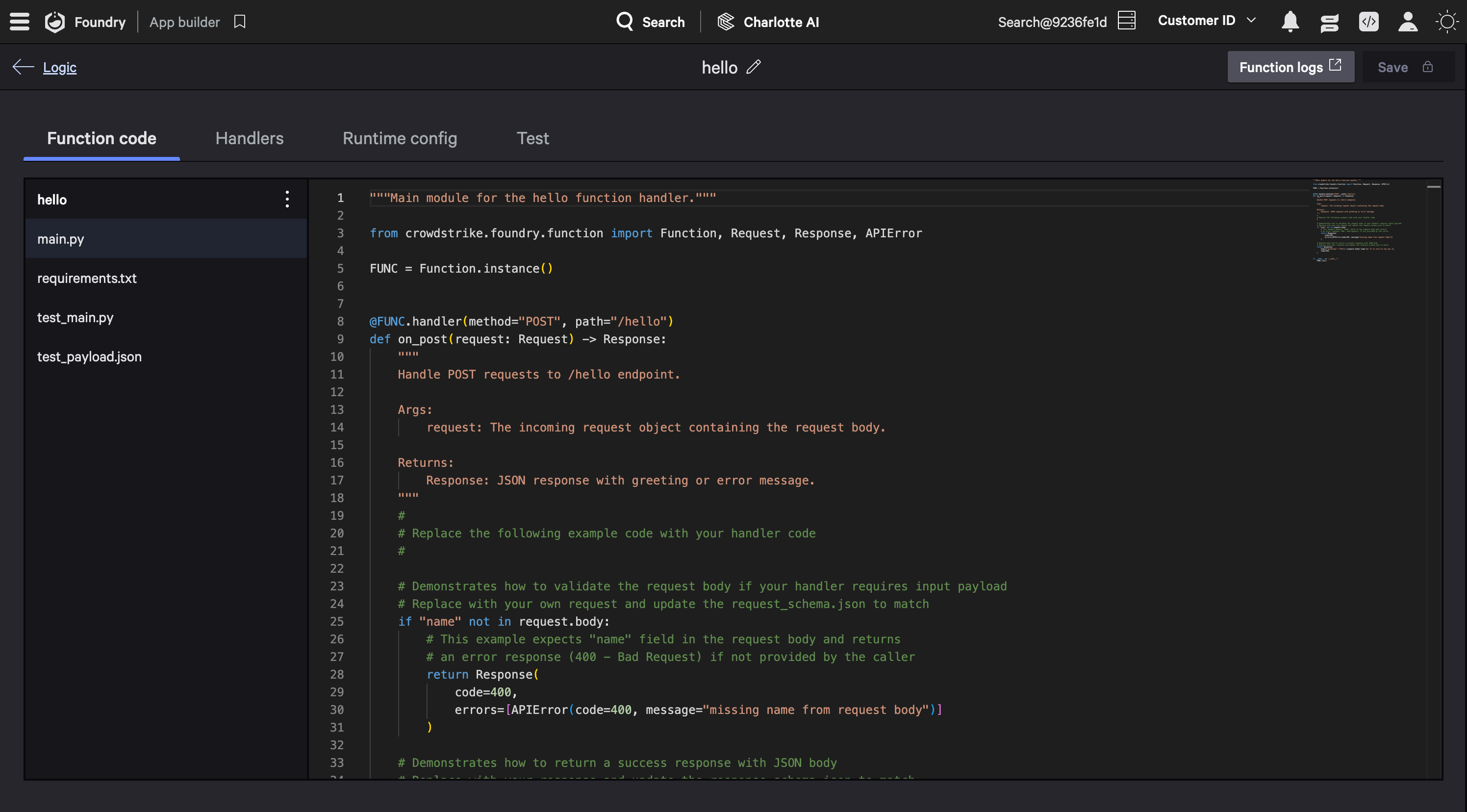
Falcon Foundry functions run Python in a serverless environment. Add crowdstrike-falconpy to your function’s requirements.txt and you get access to the full FalconPy SDK. You have two service classes for querying Falcon Next-Gen SIEM, and which one you pick depends on whether you want synchronous results or an async job you can poll.
The FoundryLogScale class is the more direct option. Falcon LogScale is the query engine underneath Falcon Next-Gen SIEM, so you’ll see “LogScale” in SDK class names and some sample apps. Call execute_dynamic() with your query string and time range, and you get results back in the response. For larger result sets, download_results() lets you pull the data as a CSV or JSON file.
TIP: If you’re new to Falcon Foundry functions, the Dive into Falcon Foundry Functions with Python post covers the basics.
from falconpy import FoundryLogScale

logscale = FoundryLogScale()

# Run an ad-hoc query
response = logscale.execute_dynamic(end="now",
                                    start="24h",
                                    repo_or_view="search-all",
                                    search_query="ComputerName=* event_simpleName=ProcessRollup2"
                                        " | groupBy([ComputerName], function=count())"
                                        " | sort(_count, order=desc, limit=100)")

results = response["body"]["resources"]
The NGSIEM class provides a separate search interface with start_search() and get_search_status(). However, for the full async query-and-retrieve pattern, FoundryLogScale with mode="async" is more practical since it gives you both status polling and result retrieval in one class:
from falconpy import FoundryLogScale

logscale = FoundryLogScale()

# Start an async query
response = logscale.execute_dynamic(mode="async",
                                    end="now",
                                    start="24h",
                                    repo_or_view="search-all",
                                    search_query='event_simpleName="DnsRequest" | head(1000)')

job_id = response["body"]["resources"][0]["job_status"]["job_id"]

# Poll until done
import time
while True:
    status = logscale.get_search_results(job_id=job_id,
                                         job_status_only=True)

    if status["body"]["resources"][0]["job_status"].get("status") == "completed":
        break
    time.sleep(2)

# Retrieve results
results = logscale.get_search_results(job_id=job_id)
Both approaches require the humio-auth-proxy:read scope in your app’s manifest. If you’re also uploading data back (lookup files, for example), you’ll need humio-auth-proxy:write.
Querying Falcon Next-Gen SIEM from a Workflow
If you’d rather skip writing code, Falcon Fusion SOAR workflows can query Falcon Next-Gen SIEM directly using the Event Query action. This is built on saved searches defined in your app’s manifest.
The screenshots in this section come from the Insider Risk SailPoint sample app, which queries SailPoint for departing employees, enriches them with identity data from Falcon, and uploads the results as a lookup file. You can find it on GitHub or install it from Falcon Foundry’s Templates tab.
In the workflow editor, add an Event Query action and configure it with your saved search. The action panel shows the saved search title and lets you set the time range for the query.
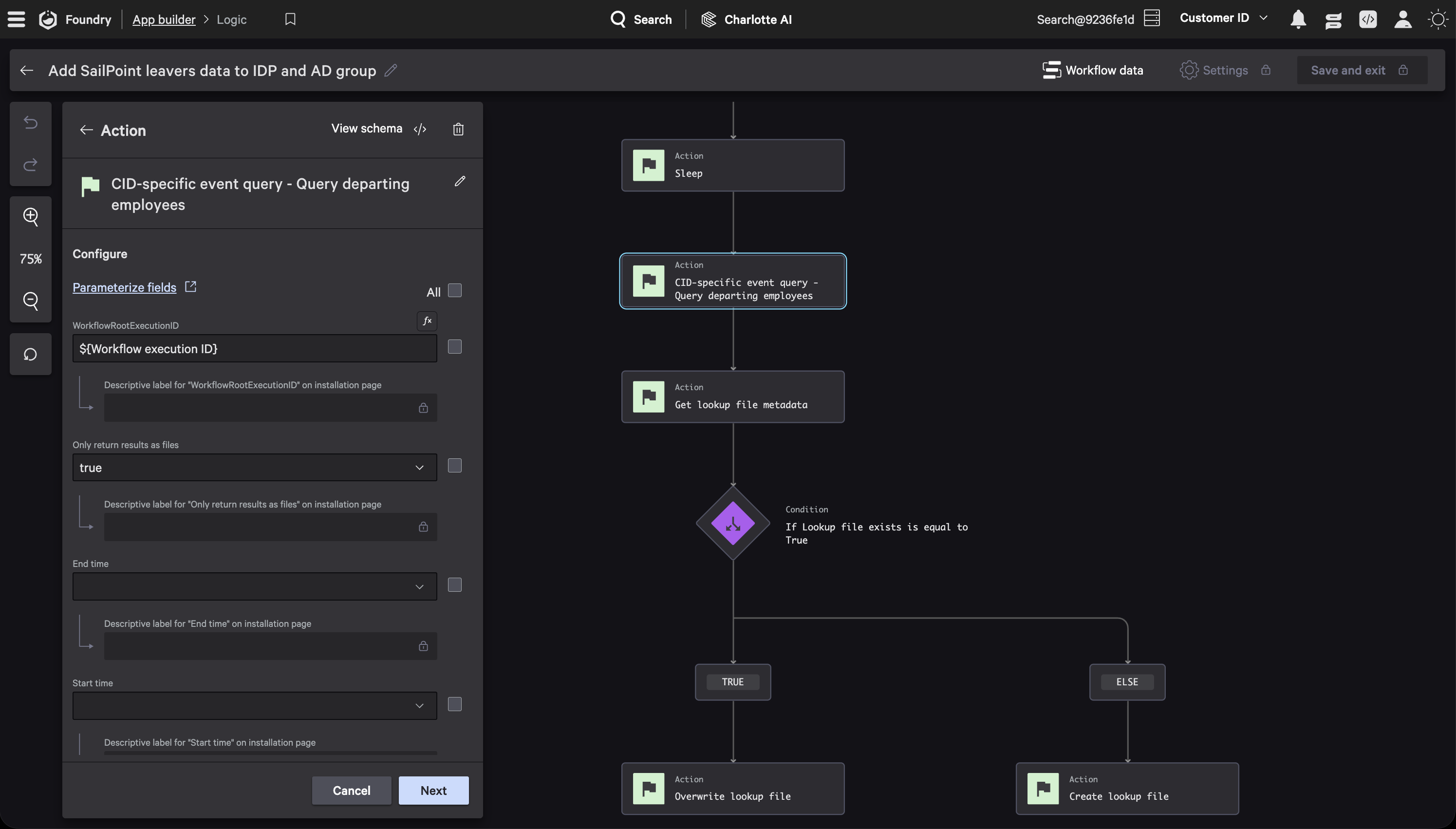
Scroll down in the action panel to find the CSV export options. Toggle Export to CSV to true, then list the fields you want as columns in CSV header fields. Leave Output files only set to false unless you’re sure you don’t need the raw JSON results. Enabling it is a common source of confusion when downstream actions expect both outputs.
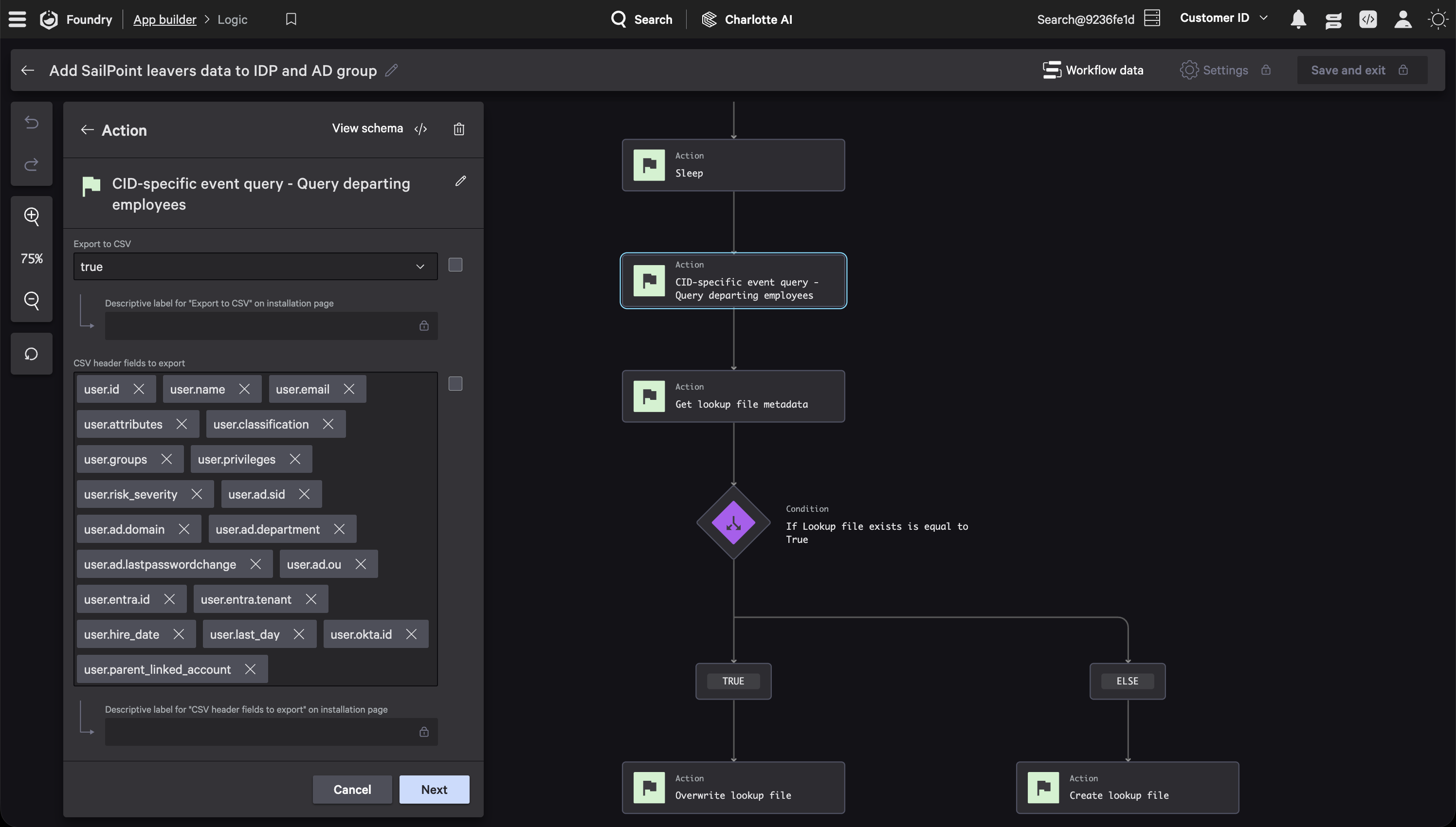
Once the query runs, its outputs are available to downstream actions. The file_csv output contains the CSV file, and results holds the raw JSON. You reference these in the next node using expressions like ${query_action.file_csv}.
YAML for power users
The actual workflow YAML uses action IDs and naming conventions specific to your app. Here’s the structure for the Event Query action:
actions:
  CIDSpecificEventQueryMySearch:
    id: logscale_saved_search.My Saved Search
    properties:
      workflow_export_event_query_results_to_csv: true
      workflow_csv_header_fields:
        - ComputerName
        - event_simpleName
        - Timestamp
      output_files_only: false  # keep false so downstream actions get both file and JSON results
      WorkflowRootExecutionID: ${Workflow.Execution.ID}
The Insider Risk SailPoint app uses this exact pattern: a scheduled workflow runs the Event Query with CSV export enabled, then feeds the CSV file into a Create Lookup File action downstream. You can browse the full workflow in the repo on GitHub.
Converting Query Results to CSV in a Function
When you’re working with the function-based approach, you’ll often need to take the JSON results from a Falcon Next-Gen SIEM query and convert them to CSV. Python’s built-in csv module handles this without any external dependencies.
import csv
import io

def results_to_csv(query_results, header_fields):
    """Convert LogScale query results to CSV string."""
    output = io.StringIO()
    writer = csv.DictWriter(output, fieldnames=header_fields, extrasaction="ignore")
    writer.writeheader()
    for row in query_results:
        writer.writerow(row)
    return output.getvalue()

# Usage
csv_content = results_to_csv(query_results=results,
                             header_fields=["ComputerName", "event_simpleName", "_count"])
The extrasaction="ignore" parameter is worth noting. Falcon Next-Gen SIEM results often contain metadata fields you don’t need in your export, and this tells the writer to skip any keys that aren’t in your header list rather than raising an error.
If you need the CSV as a file on disk (for uploading as a lookup file, for example), write it to /tmp:
import os

csv_path = "/tmp/export.csv"
try:
    with open(csv_path, "w", newline="") as f:
        f.write(csv_content)
    # ... upload or process the file ...
finally:
    if os.path.exists(csv_path):
        os.remove(csv_path)
Falcon Foundry functions run in reusable containers, so files in /tmp persist across invocations. Always clean up after yourself with a finally block to avoid disk pressure and stale data.
Uploading CSV as a Falcon Next-Gen SIEM Lookup File
Lookup files are one of the most useful destinations for exported Falcon Next-Gen SIEM data. Once uploaded, any Falcon Next-Gen SIEM query in your environment can reference the lookup file with match() for real-time correlation.
TIP: For a deeper walkthrough of the lookup file pattern, see Creating a Lookup Table with 3rd-Party Data for Automated Enrichment.
From a function, the NGSIEM service class has an upload_file() method that takes a file path and repository:
from falconpy import NGSIEM

ngsiem = NGSIEM()
response = ngsiem.upload_file(lookup_file="/tmp/export.csv",
                              repository="search-all")
This requires the humio-auth-proxy:write scope.
From a workflow, the Create Lookup File action chains directly from an Event Query. Wire the file_csv output from your query action into the lookup file action, set the file name, and you’re done.
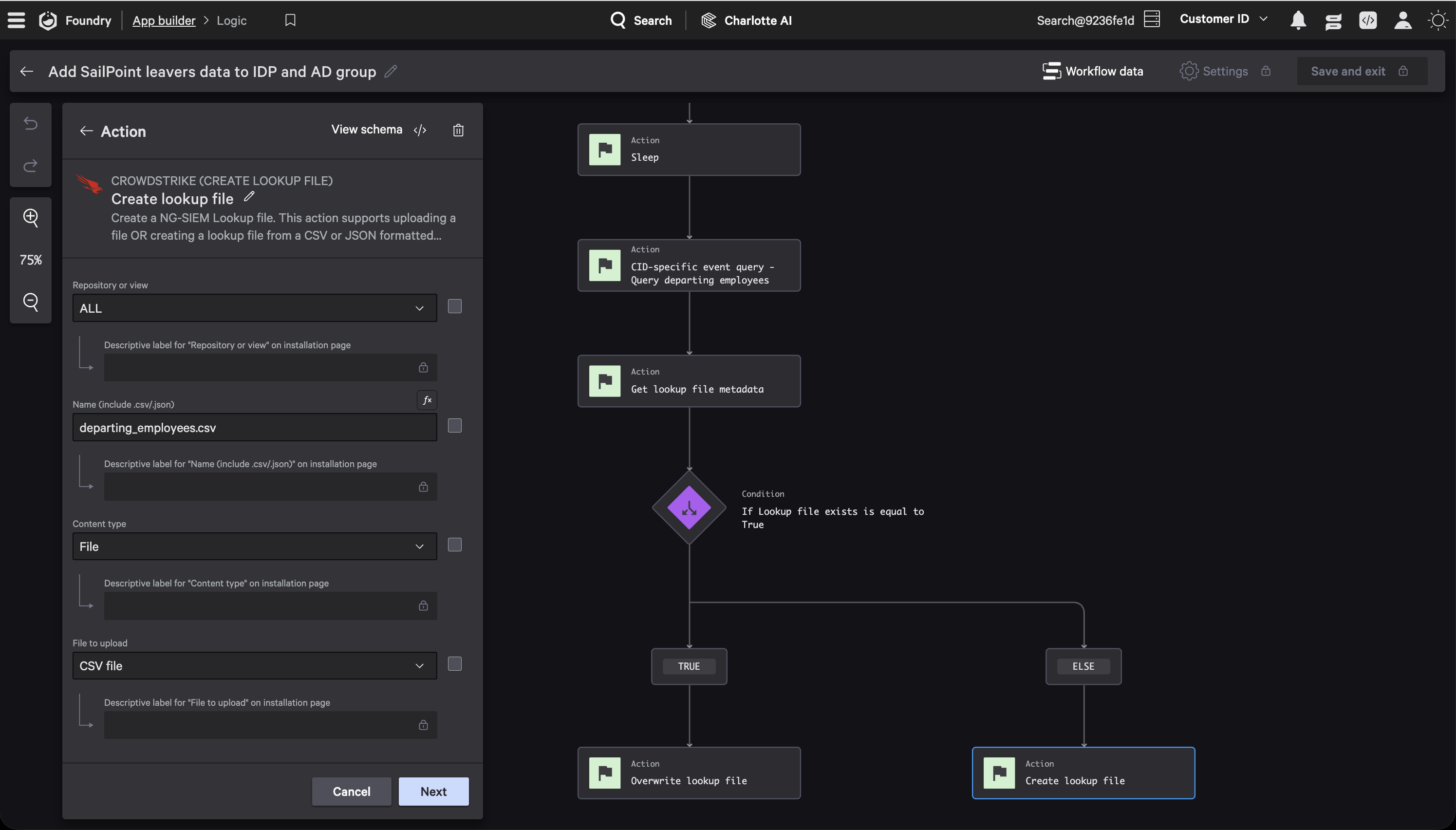
YAML for power users
Built-in platform actions like Create Lookup File use UUID-based IDs in the workflow YAML. The key property is lookup_file_content_file, which references the CSV output from the query action:
actions:
  CreateLookupFile:
    id: 51c4db34ab30465f796d7550f3e3e97b
    properties:
      lookup_file_name: exported_results.csv
      lookup_file_content_file: ${CIDSpecificEventQueryMySearch.file_csv}
      lookup_file_content_type: text/csv
      repository: search-all
This two-step workflow pattern (Event Query with CSV export, then Create Lookup File) is exactly what the foundry-sample-insider-risk-sailpoint sample does. It queries departing employees, exports the results as CSV, and creates a departing_employees.csv lookup file for enrichment.
Creating Lookup Files from an Email Inbox
The function and workflow paths above aren’t the only options. Falcon Fusion SOAR supports three lookup file actions: Create Lookup File, Overwrite Lookup File, and Get Lookup File Metadata (to check whether a file exists before creating or overwriting). Files can be CSV or JSON, up to 10 MB, with a rate limit of 5 files per 30 seconds.
One particularly useful pattern is creating lookup files from email attachments. Using the Receive email trigger with the Microsoft 365: Monitored Mailbox Connector, a workflow can monitor a shared inbox, extract a CSV attachment, and pass it into a Create Lookup File action. This lets analysts update lookup tables by sending a CSV to a designated mailbox without touching the Falcon console or writing any code.
If you want to try this out, the Unified Content Library (under Next-Gen SIEM > Content Library) includes a built-in playbook called Introduction to Lookup file actions that walks through checking whether a file exists and then creating or overwriting it in CSV or JSON format. You can use it as a starting point and customize it for your own data sources.
Sending Results to an API Integration
Sometimes the data needs to leave CrowdStrike entirely. API integrations let you push exported results to external services like a SIEM, a ticketing system, or a data warehouse.
TIP: The Build API Integrations with Falcon Fusion SOAR HTTP Actions post covers setting up integrations in detail.
From a function, the APIIntegrations class proxies requests through a pre-configured integration definition:
from falconpy import APIIntegrations

api = APIIntegrations()
response = api.execute_command_proxy(definition_id="MyExternalService",
                                     operation_id="POST__api_upload",
                                     params={
                                         "query": {"records": query_results}
                                     })
If you need to send the actual CSV file content rather than JSON, read it back and pass it in the payload:
with open("/tmp/export.csv", "r") as f:
    csv_data = f.read()

response = api.execute_command_proxy(definition_id="MyExternalService",
                                     operation_id="POST__api_csv_upload",
                                     params={
                                         "body": csv_data
                                     })

os.remove("/tmp/export.csv")
From a workflow, the API integration action works the same way as other actions. Wire the file_csv or results output from your Event Query into the integration’s input fields. The Insider Risk SailPoint app uses this to query SailPoint’s identity API for departing employees before the workflow enriches and exports them.
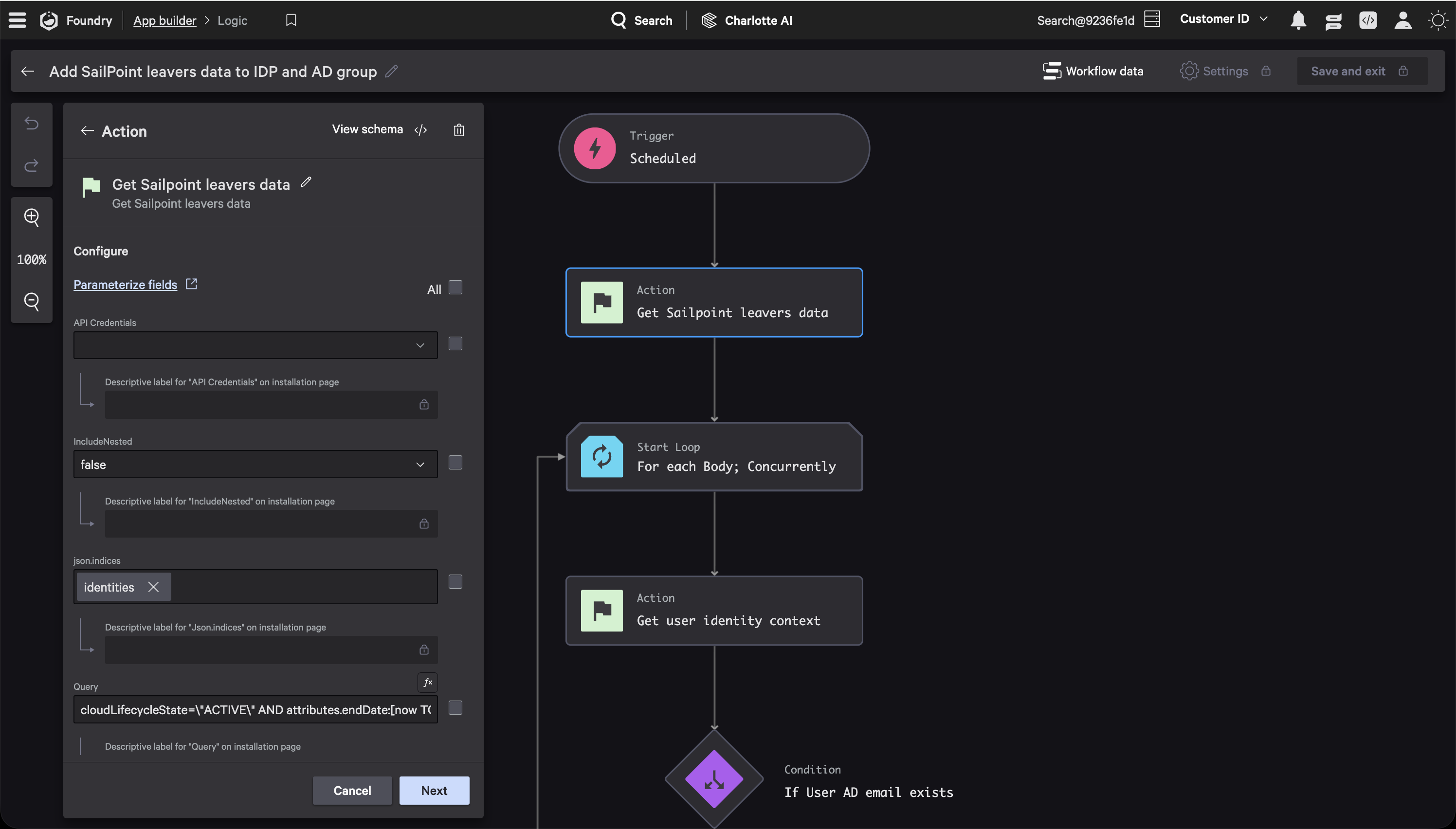
YAML for power users
API integration actions in workflow YAML use a dot-notation ID format referencing the integration name and operation:
actions:
  CallExternalAPI:
    id: api_integrations.MyExternalService.Upload Data
    properties:
      body: ${CIDSpecificEventQueryMySearch.results}
The foundry-sample-anomali-threatstream sample demonstrates a related pattern: it fetches threat intel from an external API, converts it to CSV, and uploads it as a Falcon Next-Gen SIEM lookup file.
Storing Results in a Collection
Collections are Falcon Foundry’s built-in data store. If you need query results accessible from your app’s UI or queryable via FQL, this is the path.
TIP: For a full guide on setting up collections, see Getting Started with Falcon Foundry Collections.
Write records one at a time using FalconPy’s CustomStorage service class:
from falconpy import CustomStorage

custom_storage = CustomStorage()

for record in query_results:
    record_id = f"{record['ComputerName']}_{record['Timestamp']}"
    custom_storage.PutObject(body=record,
                             collection_name="logscale_exports",
                             object_key=record_id)
Your collection needs a JSON Schema definition in the app manifest. Mark fields you want to query with x-cs-indexable:
{
  "$schema": "https://json-schema.org/draft-07/schema",
  "type": "object",
  "additionalProperties": false,
  "properties": {
    "ComputerName": { "type": "string", "x-cs-indexable": true },
    "event_simpleName": { "type": "string", "x-cs-indexable": true },
    "Timestamp": { "type": "string" },
    "_count": { "type": "integer" }
  }
}
To read the data back, use SearchObjects with an FQL filter:
response = custom_storage.SearchObjects(filter="ComputerName:'WORKSTATION-01'",
                                        collection_name="logscale_exports",
                                        limit=5)
Querying Your Exported Data
The full value of exporting shows up when you query the exported data alongside live telemetry.
For lookup files, use the match() function in Falcon Next-Gen SIEM to join live events against your export. If you exported a list of flagged hosts, you can now enrich every incoming detection with that context:
#event_simpleName=DetectionSummaryEvent
| match(file="exported_results.csv", field=ComputerName)
Any event with a ComputerName that appears in your lookup file gets the additional columns from the CSV attached to it. This is how you turn a one-time query export into persistent enrichment. For more on using lookup files in queries, see the Lookup Files reference.
For collections, query from your function code using CustomStorage().SearchObjects(...) (shown above) or from a UI extension using foundry-js’s collection.search() method. The collection data stays in sync with however frequently your function or workflow runs.
Sample Apps and Resources
Several Falcon Foundry sample apps on GitHub demonstrate the patterns covered in this post:
- foundry-sample-ngsiem-importer shows the CSV lookup file upload pattern
- foundry-sample-logscale covers data ingestion and querying Falcon LogScale from a UI page with foundry-js
- foundry-sample-functions-python demonstrates collections and API integration patterns
- foundry-sample-collections-toolkit covers CSV import, bulk operations, and collection schemas
- foundry-sample-insider-risk-sailpoint implements the full query, CSV export, and lookup file pipeline
- foundry-sample-anomali-threatstream fetches external data via API integration, converts to CSV, and uploads to Falcon Next-Gen SIEM
Keep Building with Falcon Foundry
Falcon Next-Gen SIEM queries are only as useful as what you do with the results. Whether it’s a CSV for a compliance report, a lookup file that enriches every future detection, or a collection that powers a custom UI, Falcon Foundry gives you the plumbing to move data where it matters.
For official documentation, see the Falcon Foundry docs, the Lookup Files reference, and the FalconPy SDK.
Got questions or want to share what you’re building? Join the Foundry Developer Community or the Fusion SOAR Developer Community.
If you want to dive deeper into the building blocks covered in this post:
- Dive into Falcon Foundry Functions with Python
- Creating a Lookup Table with 3rd-Party Data for Automated Enrichment
- Build API Integrations with Falcon Fusion SOAR HTTP Actions
- Ingesting Custom Data into Falcon LogScale with Falcon Foundry Functions
If you run into issues or build something interesting with these patterns, reach out in the communities above or connect with me on LinkedIn to tell us about it.